

Extensions
Extensions are JavaScript files that add new features to Spotify. They run alongside Spotify’s main code and can add buttons, modify behavior, and integrate with external services.
Installing Extensions
Via Marketplace
The easiest way to install extensions is through the Marketplace. Open Marketplace from Spotify’s sidebar and browse the Extensions tab.
Manual Installation
For extensions not in Marketplace, or for Spicetify’s built-in extensions:
-
Place the extension file in your Extensions folder:
Platform Path Windows %appdata%\spicetify\Extensions\Linux / macOS ~/.config/spicetify/Extensions/ -
Enable the extension:
Terminal window spicetify config extensions <filename.js>spicetify apply
Removing Extensions
To remove an extension, append a - after the filename:
spicetify config extensions <filename.js>-spicetify applyManual Config Editing
You can also edit the config file directly. Extensions are listed in the extensions key, separated by |:
[AdditionalOptions]extensions = fullAppDisplay.js|keyboardShortcut.js|trashbin.jsAfter editing, run spicetify apply.
Built-in Extensions
These extensions ship with Spicetify and are available immediately after installation.
Full App Display
A minimal, full-screen album art display with blur effect background.
Filename: fullAppDisplay.js
spicetify config extensions fullAppDisplay.jsspicetify applyUsage: Click the button in the top bar to activate. Double-click anywhere to exit. Right-click to open settings.

Keyboard Shortcut
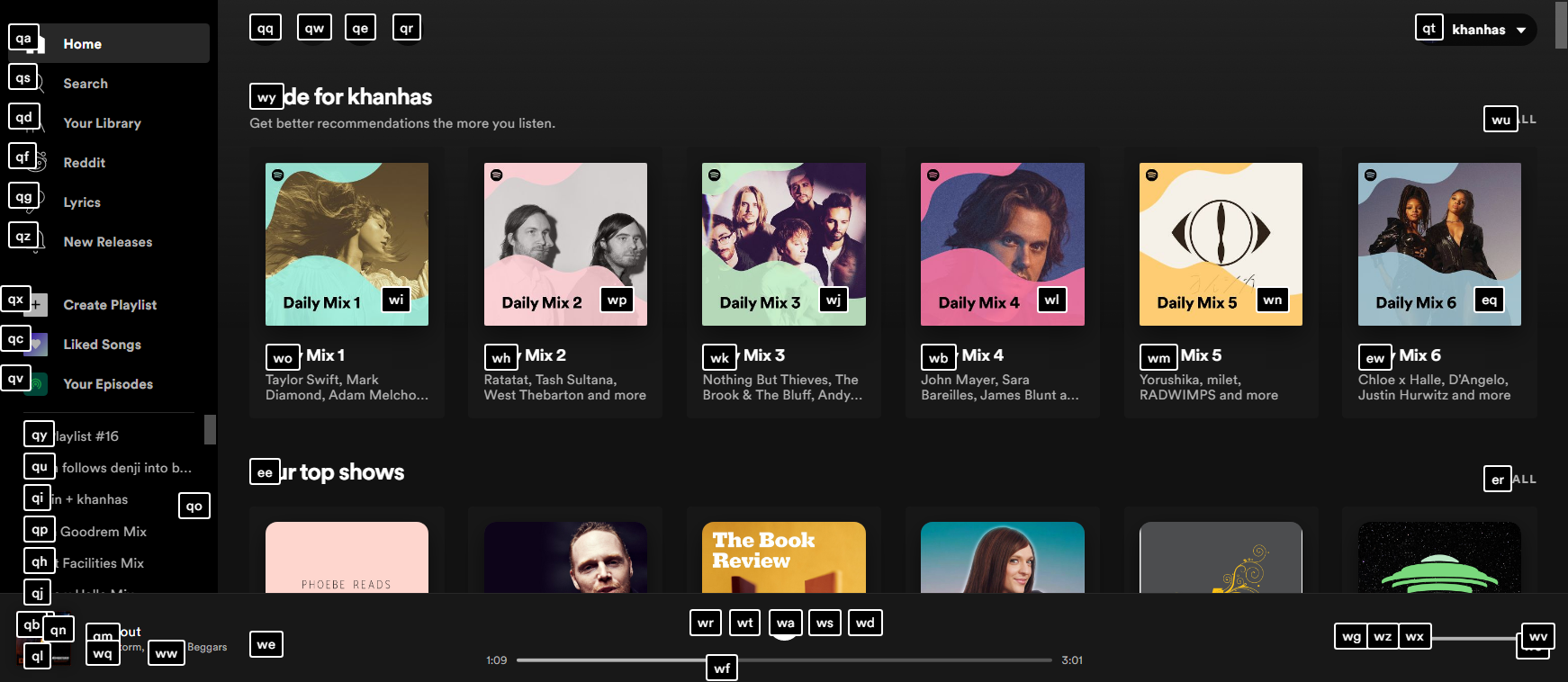
Extends Spotify’s keyboard shortcuts with vim-like navigation.
Filename: keyboardShortcut.js
spicetify config extensions keyboardShortcut.jsspicetify applyShortcuts:
- Ctrl + Tab / Ctrl + Shift + Tab: Navigate sidebar items
- Page Up / Page Down: Scroll the main page
- J / K: Scroll down/up (vim-style)
- G / Shift + G: Jump to top/bottom
- F: Open keyboard-driven navigation
Bookmark
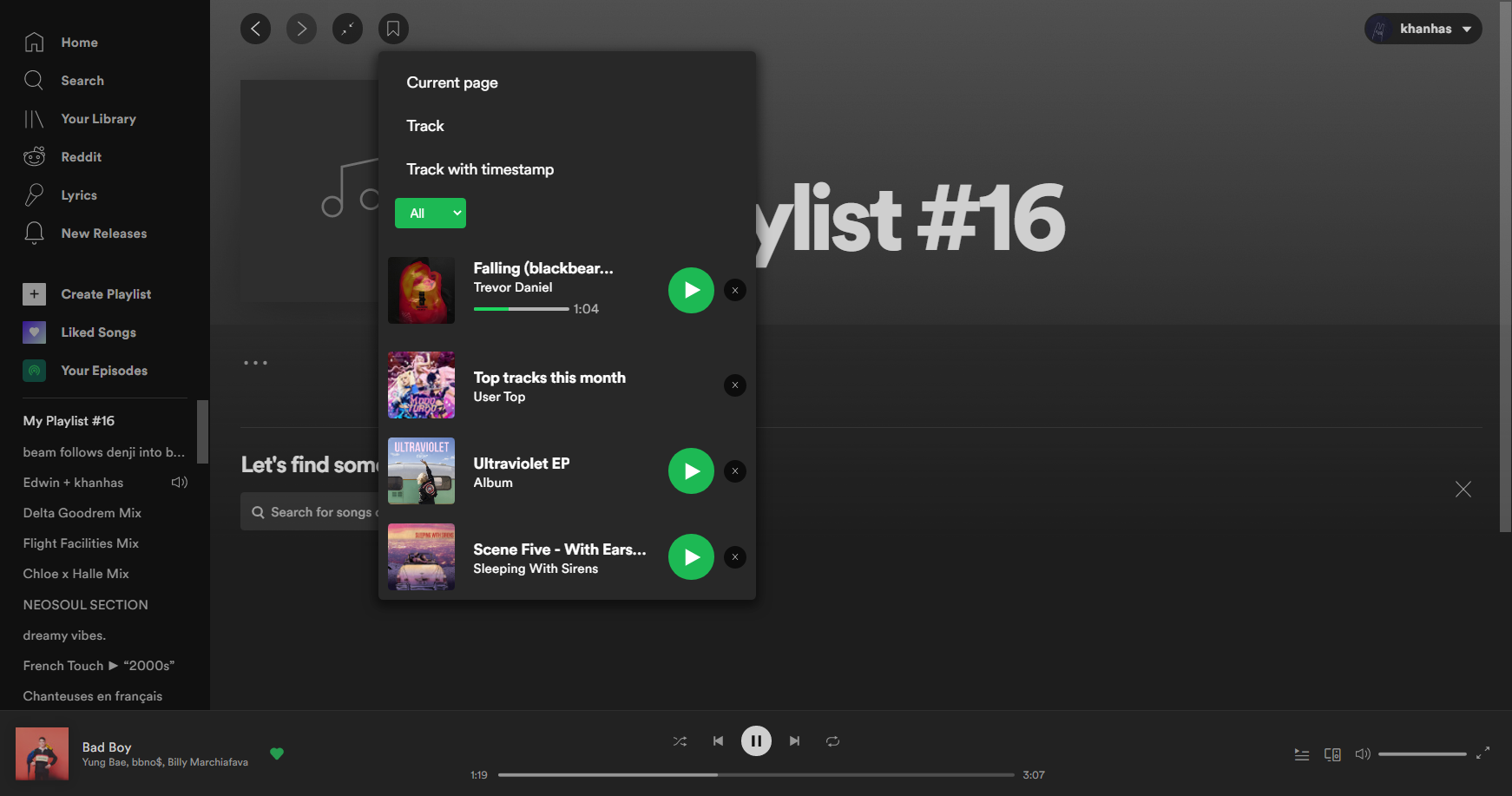
Save and quickly access pages, tracks, or specific timestamps.
Filename: bookmark.js
spicetify config extensions bookmark.jsspicetify applyUsage: Useful for bookmarking artists, albums, or playlists to check out later without following them.
Trash Bin
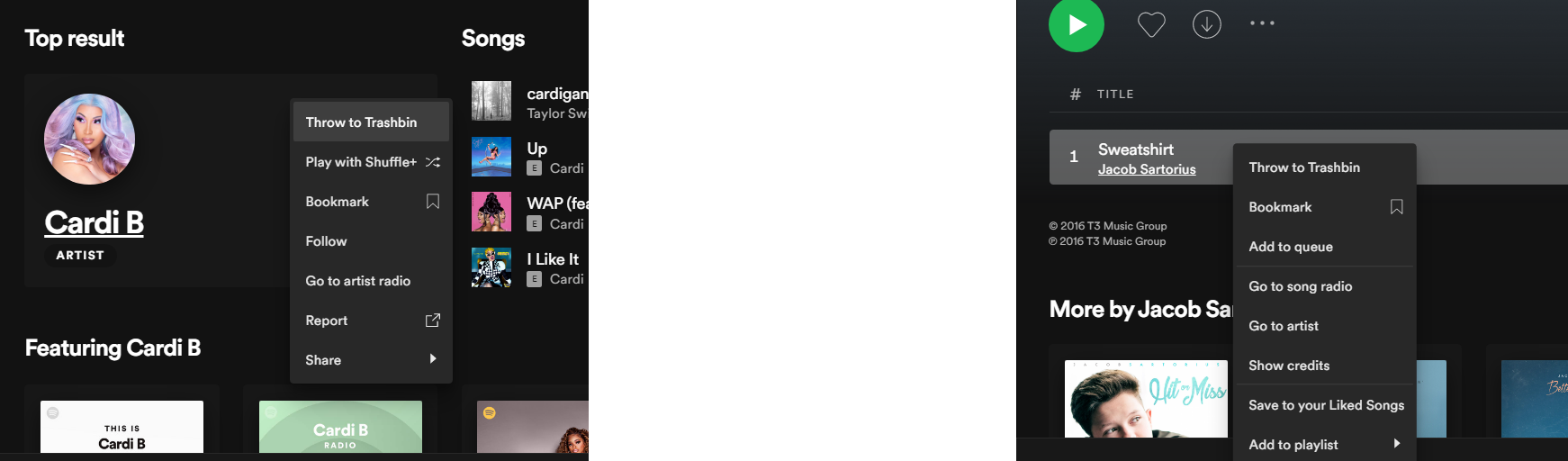
Skip songs or artists automatically. They’ll never play again.
Filename: trashbin.js
spicetify config extensions trashbin.jsspicetify applyUsage: Right-click any track or artist and select “Throw to Trashbin”. Trashed items are automatically skipped.
Shuffle+
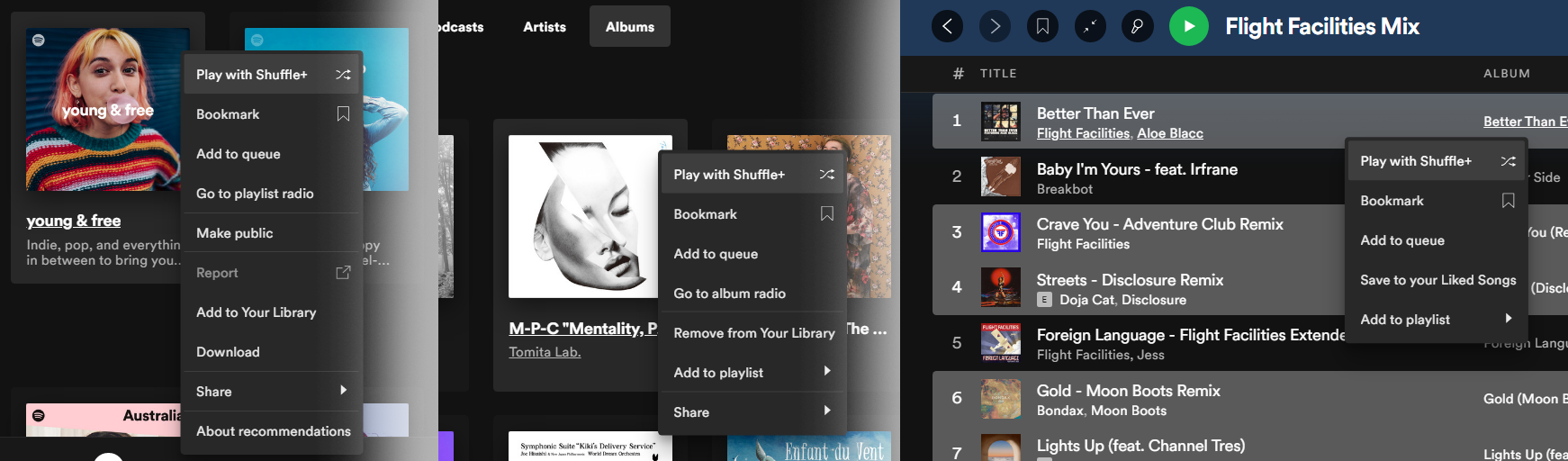
True shuffle using the Fisher-Yates algorithm (zero bias).
Filename: shuffle+.js
spicetify config extensions shuffle+.jsspicetify applyUsage: Right-click any album, playlist, or artist and select “Play with Shuffle+”. Also works with multi-selected tracks.
Loopy Loop
Loop a specific portion of a track.
Filename: loopyLoop.js
spicetify config extensions loopyLoop.jsspicetify applyUsage: Mark start and end points on the progress bar to loop that section automatically.

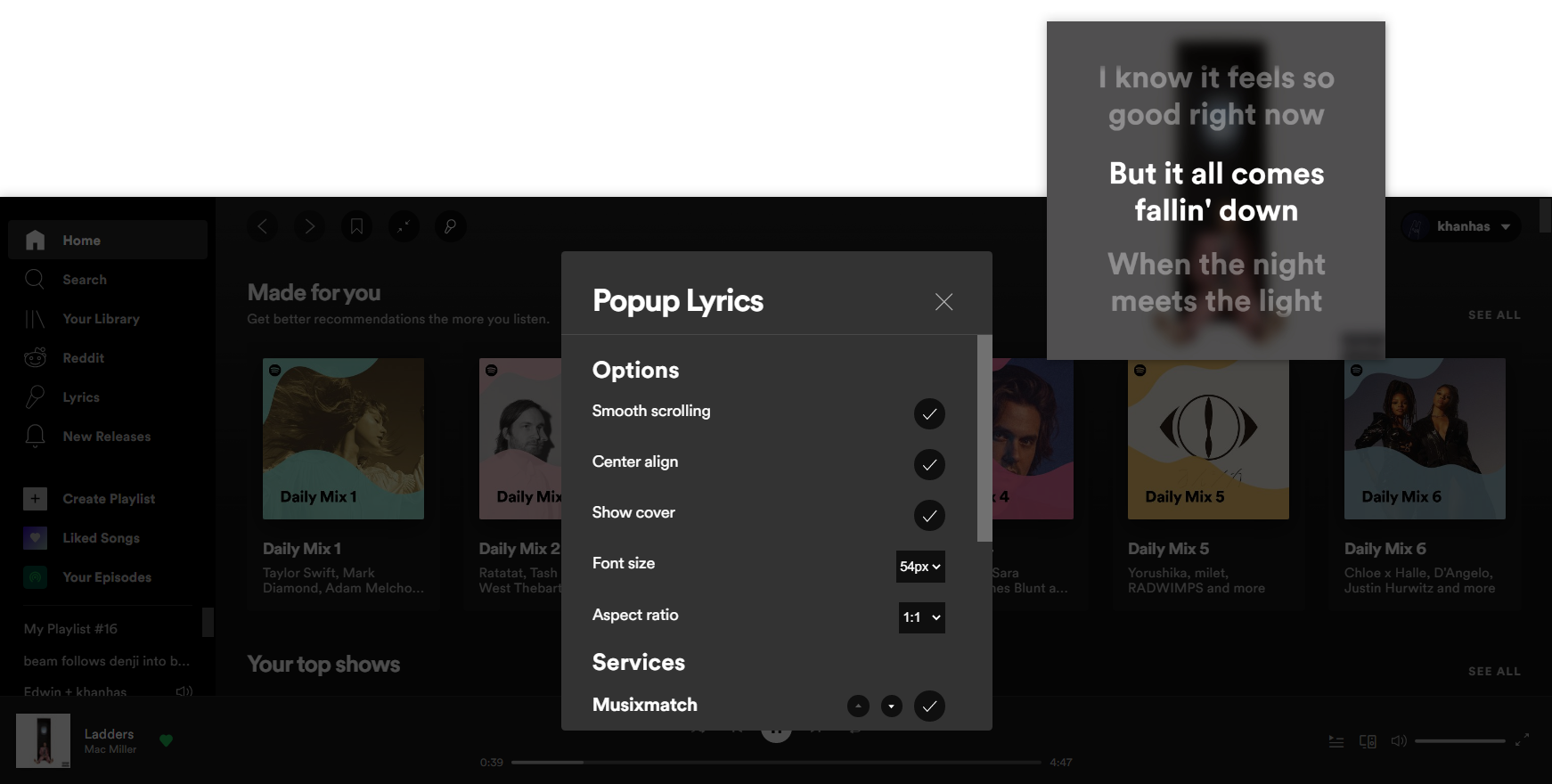
Pop-up Lyrics
Display lyrics in a separate pop-up window.
Filename: popupLyrics.js
spicetify config extensions popupLyrics.jsspicetify applyUsage: Click the microphone icon in the top bar. Right-click for settings and lyrics provider options.
Auto Skip Videos
Automatically skip video content that can’t play in your region.
Filename: autoSkipVideo.js
spicetify config extensions autoSkipVideo.jsspicetify applyWhy: Some video content is region-locked. Without this extension, playback just stops instead of moving to the next track.
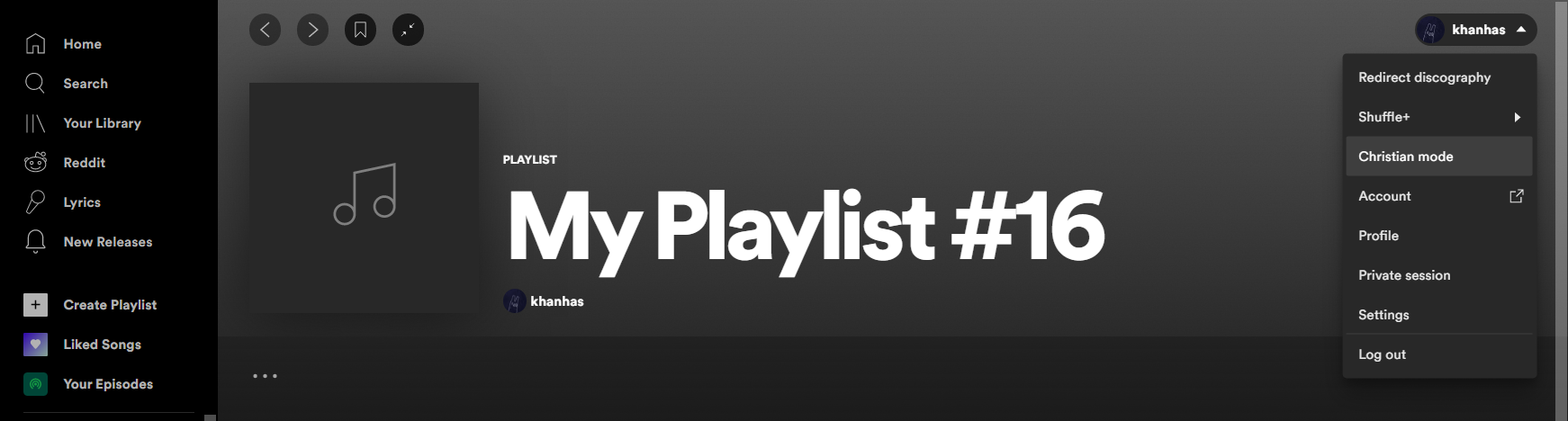
Christian Spotify
Automatically skip explicit tracks.
Filename: autoSkipExplicit.js
spicetify config extensions autoSkipExplicit.jsspicetify applyUsage: Toggle in the profile menu (top-right button).
Web Now Playing
Send track metadata to Rainmeter’s WebNowPlaying plugin.
Filename: webnowplaying.js
spicetify config extensions webnowplaying.jsspicetify applyFor minimal setup (no UI changes):
spicetify config inject_css 0 replace_colors 0spicetify config extensions webnowplaying.jsspicetify applyCreating Extensions
Want to build your own extension? See the Development Guide and Spicetify Creator for tools and tutorials.